
How to run periodic jobs on Heroku: Scheduler, cron add-ons, a clock dyno or an HTTPS call
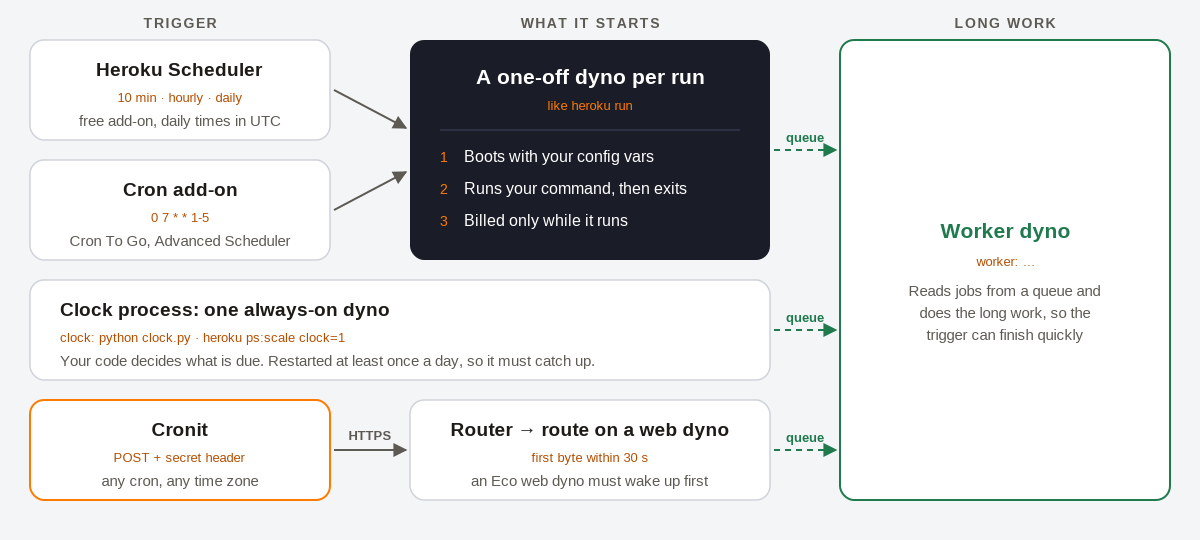
Heroku has no crontab you can edit, so a periodic job needs something else to start it. Heroku's own answer is the free Heroku Scheduler add-on. The alternatives are a cron add-on from the Elements marketplace, a clock process you run yourself, or an outside service that calls a route in your web app. This guide sets up each one and shows where each one breaks.
Everything below was checked against the Heroku Dev Center, the add-on pages on Heroku Elements and Heroku's pricing in November 2026. Prices are as of November 2026.
Key takeaways
- Heroku Scheduler is a free add-on with three frequencies: every 10 minutes, every hour, or every day at a time in UTC. Each run starts a one-off dyno, and you pay for the time that dyno runs.
- Heroku says Scheduler runs are expected but not guaranteed. In rare cases a run is skipped or happens twice, so every job must be safe to repeat.
- A dyno started by Scheduler doesn't outlive the job's interval. Long work belongs on a worker dyno, with the scheduled command only queuing it.
- For cron expressions and per-job time zones, use a cron add-on. For jobs your app can't do without, Heroku recommends a clock process. A scheduled HTTPS call to a protected route also works, within the router's 30-second limit.
Four ways to run a periodic job on Heroku
Every option runs your app's code with its config vars. What differs is what starts the job, how precisely you can set the time, and what you pay for.
| Option | What starts the job | Shortest interval | Time zone | You pay for |
|---|---|---|---|---|
| Heroku Scheduler | A one-off dyno per run | 10 minutes | UTC | Dyno time per run; the add-on is free |
| Cron add-on | A one-off dyno per run | 1 minute | Per job | The add-on plan plus dyno time |
| Clock process | Your code on one always-on dyno | What your library allows | What your library allows | One dyno running all month |
| HTTPS call (Cronit) | A request to a route on your web dyno | 1 minute | Per job | The scheduler's plan; the web dyno you already run |
Set up Heroku Scheduler
Heroku only lets verified accounts add add-ons, free ones included, and that means a credit or debit card on file. With that done, setup takes a few minutes.
1. Install the add-on
heroku addons:create scheduler:standard -a your-appOr open the app's Resources tab in the dashboard, search the add-ons for Heroku Scheduler and add it. There is a single plan, Standard, which is free and has no limit on the number of jobs.
2. Write the task as code
A task is any command your app can run, exactly what you would type after heroku run. Keep the logic in your repository and the command short:
- Rails: a rake task, by convention in
lib/tasks/scheduler.rake, that depends on:environmentso the app is loaded. - Any language: a script in
bin/(Heroku's example isbin/clean-sessions) or a command such asnode scripts/sync.jsthat connects throughDATABASE_URL, does the work and exits. - A process type: enter the name of a process type from your Procfile and Scheduler runs that type's command.
# lib/tasks/scheduler.rake
desc "Send the daily summary e-mail"
task send_daily_summary: :environment do
  DailySummary.deliver_all
end
Run it once by hand before you schedule it. Scheduler uses the same one-off dynos as heroku run, so a command that works here works from Scheduler:
heroku run -a your-app rake send_daily_summary3. Add the job
- Open the Scheduler dashboard with
heroku addons:open scheduler -a your-app, or click the add-on in your app's dashboard. - Click Add Job and enter the command, for example
rake send_daily_summary. - Choose the dyno size. The choice depends on your app's dyno tier (see the next section).
- Choose the frequency: every 10 minutes, every hour, or every day. An hourly job also takes the minute past the hour; a daily job takes a time, in UTC.
- Save, and check that the job is listed with the next run time you expect.
Keep secrets out of the command
On the Common Runtime, Heroku expands config var values into the command it writes to your logs. A command like curl -H "Authorization: $API_TOKEN" … puts the token in your logs. Read the secret from the environment inside your code instead.
What Scheduler runs cost
The add-on costs nothing; the dynos it starts are billed like any other. Heroku counts wall-clock time, prorates to the second, and lists the time under a "scheduler" dyno type on your invoice.
Which sizes you can choose depends on the app's dyno tier. On an app that uses Eco or Basic dynos, one-off dynos are Eco or Basic too, and no other type is available. Apps on Standard or Performance dynos get Standard-1X by default and can pick larger sizes for heavy jobs.
| Dyno type | Per hour (approx.) | Maximum per month |
|---|---|---|
| Eco | $0.005 | $5 flat for a 1,000-hour pool shared by all Eco dynos on the account |
| Basic | $0.01 | $7 |
| Standard-1X | $0.03 | $25 |
| Standard-2X | $0.06 | $50 |
| Performance-M | $0.34 | $250 |
Common Runtime prices from Heroku's usage and billing documentation, as of November 2026. A worked example: a job that runs for 3 minutes every 10 minutes uses 7.2 dyno hours a day, or 216 hours in a 30-day month. That is 30% of a month of dyno time, so about $2 on Basic, about $7.50 on Standard-1X, or more than a fifth of the Eco pool.
On Eco, that last point matters most. Scheduler runs draw from the same pool as your Eco web dynos, and when the pool runs out, every Eco dyno on the account sleeps until the next month.
The limits to plan around
Most problems with Scheduler come from one of these four limits.
Three frequencies, no cron expressions
Every 10 minutes, every hour and every day are the only choices. "Every 5 minutes", "weekdays at 07:00" and "the 1st of the month" can't be expressed. For weekly or monthly work, schedule the job daily and have the task exit early unless today is the right day. For anything finer, use one of the other three options.
Daily times are UTC, and daylight saving moves them
The time you enter for a daily job is UTC, with no time zone setting. 2:00 a.m. in New York is 07:00 UTC in winter but 06:00 UTC in summer, so a job fixed at 07:00 UTC runs at 3:00 a.m. New York time from March to November. If the local hour matters, as it does for reports and billing runs, you have to change the job twice a year. The cron time zone converter gives you the UTC value, and cron, time zones and daylight saving time explains the jumps.
Runs are expected, not guaranteed, and the interval is a time limit
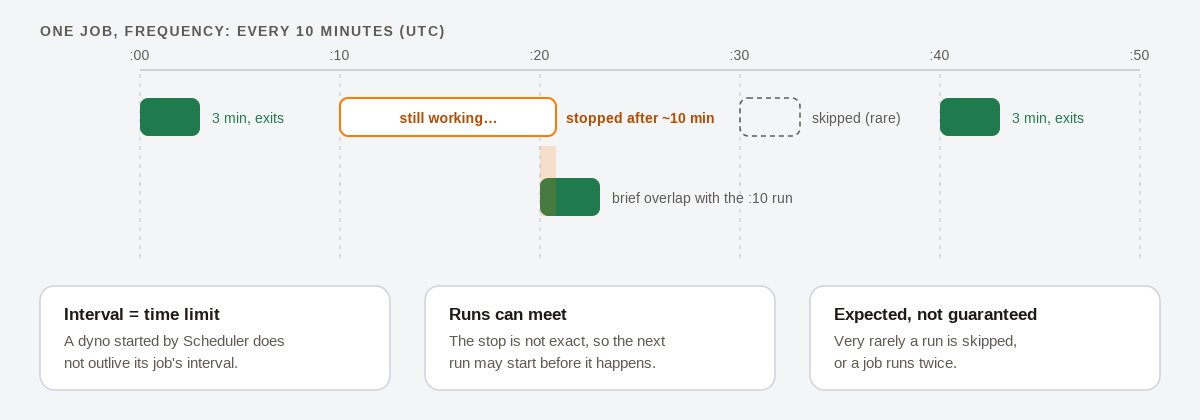
Heroku's documentation is explicit that Scheduler job execution is expected but not guaranteed. A dyno started by Scheduler also does not run longer than the job's interval: a 10-minute job's dyno is stopped after about 10 minutes, an hourly job's after about an hour. So keep the scheduled command short, and have it put longer work on a queue for a worker dyno.
Container Registry apps run tasks from the web image
If you deploy with Container Registry, the task has to be runnable from your web image. Scheduler has no option to use another image.
Make every job safe to run twice
Because a run can be skipped, duplicated or cut off, the durable fix is code that gives the same result whether it runs once or three times.
- Write idempotently. Use upserts (
INSERT … ON CONFLICTin Postgres) against a unique key, so re-running yesterday's import updates rows instead of duplicating them. - Record what is done. Store a last-run timestamp or a "sent" flag per record, and skip work that is already finished.
- Lock jobs that must not overlap. A Postgres advisory lock (
pg_try_advisory_lock) lets a second copy exit cleanly instead of racing the first. - Derive the window from the data, not the clock. A daily job that covers "yesterday" should work out which day that is when it runs, so a late or repeated run still processes the right day.
Then ask one more question: if this job didn't run today, who would notice? If the answer is nobody, monitoring matters more than the schedule (see below).
Cron add-ons: Cron To Go and Advanced Scheduler
Cron add-ons also run your command on a one-off dyno, so the code and the dyno billing work as with Scheduler. What you gain is a real schedule: cron expressions down to one minute and a time zone per job. Both add-ons below were listed and installable on Heroku Elements in November 2026.
heroku addons:create crontogo -a your-app
heroku addons:create advanced-scheduler -a your-app| Cron To Go | Advanced Scheduler | |
|---|---|---|
| Schedules | Cron or rate expressions such as Every 7 minutes; at most once a minute | 5-field cron, at most once a minute; also one-off triggers at a set date and time |
| Time zone | Per job, UTC by default | Per trigger, as an IANA name such as America/New_York |
| Failure notices | E-mail, webhooks, Slack and Microsoft Teams | E-mail on a trigger's first failed run each day |
| Run history | 1 to 30 days, by plan | 3 to 30 days, by plan |
| Plans | Bronze $9/month (5 jobs) up to Iridium $1,099/month (1,350 jobs) | Standard 0 $15/month (12 triggers) up to Standard 4 $240/month (240 triggers) |
| Trying it | 7-day trial with the Gold plan's features; jobs are disabled when it ends unless you upgrade | Free trial plan: 3 triggers, up to 100 executions |
Dyno time for each run comes on top of the plan price. Two details are worth knowing before you choose:
- To keep a Cron To Go job to one running copy, set its timeout below its interval. The dyno is killed when the timeout expires.
- Cron To Go's own documentation notes that it starts runs through Heroku's APIs, so a run can be skipped if those APIs are down, and it points to a clock process for critical jobs. An add-on gives you a better schedule and alerts, not a guarantee.
For services that call a URL instead of starting a dyno, see the online cron job services compared.
A custom clock process
A clock process is a long-running process of your own that decides when work is due. Heroku recommends it over Scheduler when scheduled jobs are a critical part of your app, because you get more reliability, control and visibility. Heroku's Python guide uses APScheduler, and the example below follows it, with a time zone added.
- Declare the process type in your
Procfile, next to yourwebline:
clock: python clock.py- Add
APScheduler>=3.10,<4.0torequirements.txt(the version range Heroku's guide pins) and writeclock.py:
from apscheduler.schedulers.blocking import BlockingScheduler

sched = BlockingScheduler(timezone='Europe/Berlin')

@sched.scheduled_job('cron', day_of_week='mon-fri', hour=7)
def morning_report():
    print('Queue the morning report here.')

sched.start()- Deploy, then start exactly one clock dyno:
heroku ps:scale clock=1 -a your-appWithout the timezone argument, cron times follow the scheduler's default zone. Setting it makes the 07:00 mean 07:00 in Berlin, summer and winter. Four rules keep a clock dependable:
- Run one copy only. Heroku's guide calls the clock a singleton: two clock dynos schedule every job twice.
- Queue work, don't do it. Heroku's advice is to use the scheduler only to queue background jobs and let a worker dyno execute them.
- Plan for restarts. Dynos restart at least once a day (every 24 hours plus up to 216 random minutes) and on every deploy, config var change and add-on change. A job due during a restart is missed unless the clock checks on startup what should have run.
- Avoid Eco for the clock. When an app's Eco web dyno sleeps after 30 minutes without web traffic, its Eco worker dynos sleep too, clock included. Basic dynos never sleep and cost at most $7 a month.
The same idea in other stacks
- Node.js: node-cron (version 4) runs cron expressions inside a long-running process, with options such as
timezoneandnoOverlap, which skips a run while the previous one is still going. - Ruby: sidekiq-cron runs a scheduling thread inside your Sidekiq processes and uses Redis so that only one of them enqueues each job. Your Sidekiq worker dyno doubles as the clock, so no extra dyno is needed. Jobs live in
config/schedule.yml, and a cron string can end with a time zone, such as0 22 * * 1-5 America/Chicago. - Laravel:
schedule:runruns the tasks that are due at the moment it is called and expects to be called every minute, so a 10-minute Scheduler job runs only what is due in those minutes. Use a clock dyno runningphp artisan schedule:work, which calls the scheduler every minute in the foreground (Laravel's docs present it for local development), or run the scheduler over HTTP.
Call a protected route with Cronit
When you need a time Heroku Scheduler can't express, such as 02:00 New York time all year round, and you already run a web dyno, an external scheduler can call a protected route instead. Cronit works this way: it sends an HTTP request on a standard 5-field cron schedule, in the time zone you set for the job, and handles daylight saving time.
- Store a long random secret as a config var. Setting a config var restarts the app.
heroku config:set CRON_SECRET=$(openssl rand -hex 32) -a your-app- Add a route that checks the secret, queues the work and answers at once. In Express:
app.post('/tasks/nightly-report', (req, res) => {
  const expected = `Bearer ${process.env.CRON_SECRET}`;
  if (req.get('authorization') !== expected) {
    return res.sendStatus(401);
  }
  queueNightlyReport(); // your code: hand the work to the worker dyno
  res.sendStatus(202);
});- In Cronit, create a job with method POST, your app's URL (for example
https://example-app-1234567890ab.herokuapp.com/tasks/nightly-report, or your custom domain), a headerAuthorization: Bearer …with the secret, the schedule0 2 * * *and the time zone America/New_York. Send the test request before saving; you should get202.
Every call then appears in the job's execution log with its status, and a job that fails again and again switches itself off. Two Heroku rules decide whether this works:
- The router gives the route 30 seconds. If no response byte comes back in that time, the router ends the request and logs an H12 error, while the dyno keeps working. That is why the route answers
202and leaves the work to a worker. - The web dyno has to be awake. An Eco web dyno sleeps after 30 minutes without traffic and wakes after a short delay when a request arrives, if the pool has hours left. A schedule that calls it more often than every 30 minutes keeps it awake around the clock and burns pool hours. Basic and larger dynos never sleep.
The job editor estimates runs per month while you type the schedule. Compare that with the plans on the pricing section.
Watch, stop and debug scheduled runs
Scheduler's output goes to your app's logs, and its documentation describes no alerts or run history beyond them. These commands cover day-to-day work:
heroku ps -a your-app
heroku logs --tail -a your-app
heroku logs --dyno-name scheduler.1234 -a your-app
heroku ps:stop scheduler.1234 -a your-app
heroku pslists a running Scheduler job asscheduler.plus a number, with its state. Use that name in the other commands.heroku logs --dyno-nameshows the output of that one run;--tailstreams everything as it happens.heroku ps:stop(aliasheroku ps:kill) stops a runaway run. The job itself stays scheduled. A stopped Cron To Go run is marked failed, with process status 143 (SIGTERM).
None of this catches a run that never started. For that, have the job ping a heartbeat URL when it finishes and get alerted when the ping doesn't arrive in time. The guide to monitoring cron jobs and getting failure alerts covers how to set that up.
FAQ
- Can Heroku Scheduler run a job every 30 minutes?
- Not with a single job, because the only frequencies are every 10 minutes, hourly and daily. Add two hourly jobs with the same command, one at :00 and one at :30, or run it every 10 minutes and let the task skip the runs it doesn't need.
- How do I run a one-time job at a set time on Heroku?
- Heroku Scheduler only repeats. To start a command right now in the background, use
heroku run:detached, which sends its output to your logs. For a single run at a set date and time, Advanced Scheduler has one-off triggers that take a date, a time and a time zone. - Can I keep my Heroku schedules in code?
- Not with Heroku Scheduler: you create its jobs in its dashboard, and its documentation describes no API or config file for them. A clock process or sidekiq-cron keeps the schedule in your repository, and Cron To Go has a Heroku CLI plugin (
heroku plugins:install heroku-cron) that a deploy script can call. - Can I use the whenever gem or a crontab on Heroku?
- No. whenever turns your schedule into entries in the system crontab, and its own README says that Heroku does not support cron. Move those jobs to Heroku Scheduler, a clock process or sidekiq-cron.