Cron job not running? A step-by-step troubleshooting checklist
You added a line to your crontab, waited, and nothing happened. Or the script works perfectly when you run it yourself and fails every time cron runs it. Both situations are extremely common, and almost always come down to a short list of causes.
This checklist goes through them in the order that finds the problem fastest. Commands are for Debian and Ubuntu, with the equivalents for RHEL, Fedora, Rocky and Amazon Linux where they differ.
Short answer
First check whether cron even tried to start the job: grep CRON /var/log/syslog (or journalctl -u cron). If there is no entry, the problem is the schedule, the crontab file or the daemon. If there is an entry, the problem is the command: cron runs it with a minimal environment, /bin/sh, a short PATH and no terminal, and the % character has a special meaning. Redirect the output to a file to see the actual error.
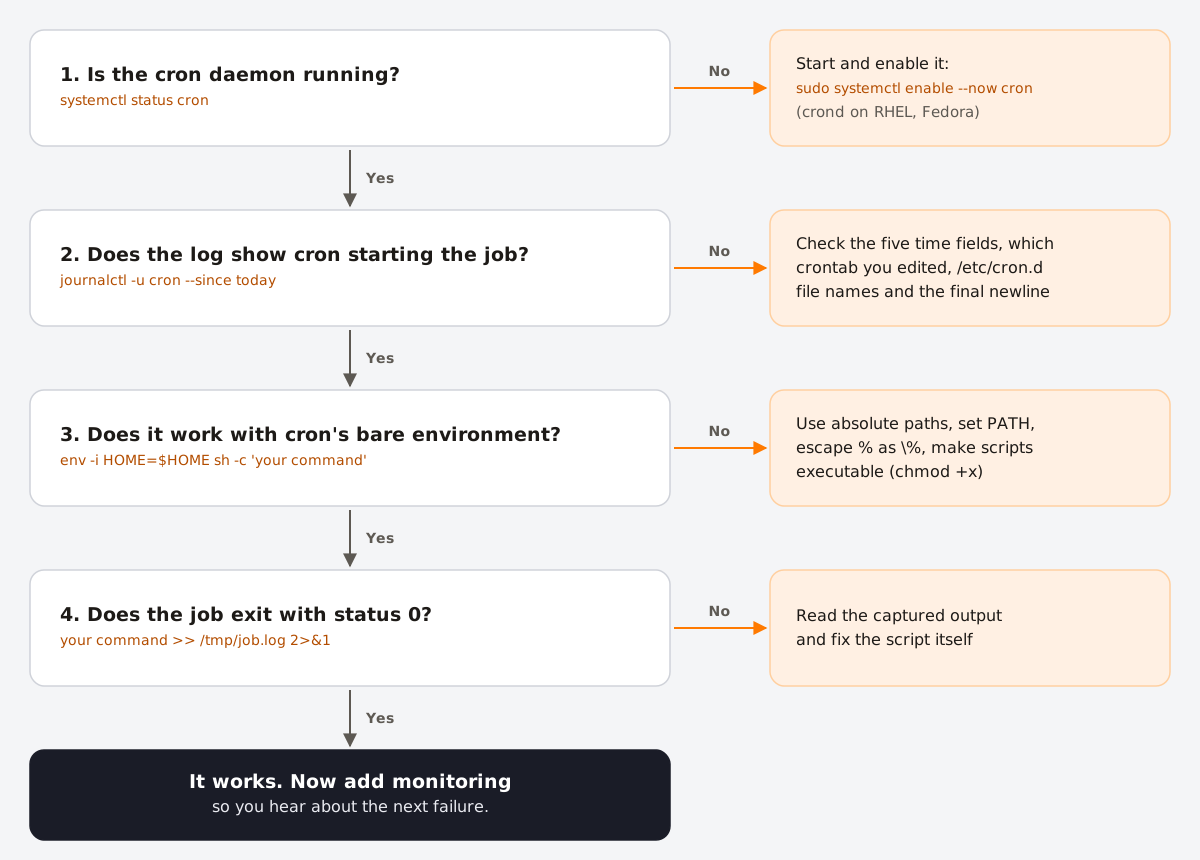
1. Is the cron daemon running?
systemctl status cron      # Debian, Ubuntu
systemctl status crond     # RHEL, Fedora, Rocky, Amazon Linux
If it is inactive, start it and enable it at boot:
sudo systemctl enable --now cronInside Docker containers there is usually no cron daemon at all: the container runs your application process and nothing else. Either run cron as the container's main process, use a separate scheduler container, or trigger the work from outside over HTTP.
2. Did cron try to run the job?
Cron logs a line each time it starts a command. This single check splits every problem into two groups.
# Ubuntu (and Debian with rsyslog installed)
grep CRON /var/log/syslog | tail -20

# Debian 12 and later, or any systemd system
journalctl -u cron --since "1 hour ago"

# RHEL, Fedora, Rocky, Amazon Linux
sudo tail -20 /var/log/cron
journalctl -u crond --since "1 hour ago"
Since Debian 12, rsyslog is no longer installed by default, so /var/log/syslog may not exist at all; use journalctl. A successful start looks like this:
Oct 27 09:15:01 web1 CRON[48211]: (deploy) CMD (/home/deploy/bin/backup.sh)- No line for your job: cron never started it. Go to sections 3 to 5.
- A line, but the job did not do its work: cron started it and the command failed. Go to sections 6 to 9.
3. Is the schedule what you think it is?
Paste the five time fields into the cron analyzer and read the next run times. The classic mistakes:
- Fields in the wrong order. The order is minute, hour, day of month, month, day of week.
9 30 * * *is not 09:30; it is invalid, because there is no hour 30. *in the minute field.* 9 * * *runs every minute from 09:00 to 09:59, sixty times. You probably wanted0 9 * * *.- Day of month and day of week together. When both are restricted, cron runs the job when either matches.
0 9 1 * 1runs on the 1st of the month and on every Monday. Debian and Ubuntu cron add a twist: a field that starts with*, such as*/2, does not count as restricted, so0 0 */2 * 0only runs on Sundays with an odd date. - The server's time zone. Cron uses the system time zone. Check it with
timedatectl; a cloud server set to UTC runs0 9 * * *at 09:00 UTC. See cron and time zones.
4. Did you edit the right crontab?
There are several places a job can live, and they do not use the same format:
| Where | Edit with | User field? |
|---|---|---|
| Your user's crontab | crontab -e | No |
| Root's crontab | sudo crontab -e | No |
/etc/crontab | A text editor, as root | Yes, before the command |
/etc/cron.d/* | A text editor, as root | Yes, before the command |
crontab -l and sudo crontab -l show two different files. A line copied from /etc/crontab into crontab -e keeps its user field, which cron then tries to run as a command; the opposite mistake turns the first word of your command into a user name. Never edit the files under /var/spool/cron directly: cron may not notice the change.
5. Is the file itself valid?
- Missing final newline. Every entry must end with a newline. If the last line does not, cron considers the crontab "at least partially" broken and writes a warning to the log. Always leave an empty line at the end.
- Windows line endings. A file edited on Windows ends each line with
\r, which ends up in the command. Check withcat -A(look for^M) and fix withdos2unix. - File names in
/etc/cron.d. On Debian and Ubuntu, files whose names contain a dot, such asbackup.cronorapp.conf, are ignored. Use letters, digits, hyphens and underscores only. - Ownership and permissions. Files in
/etc/cron.dmust be owned by root and must not be writable by group or others. - Scripts in
/etc/cron.dailyand friends are run byrun-parts: they need the execute bit and, on Debian, the same no-dot naming rule.run-parts --test /etc/cron.dailylists the scripts that would actually run. - Not allowed to use cron. If
/etc/cron.allowexists, only users listed in it can have a crontab; users in/etc/cron.denycannot.
6. Does the command work with cron's environment?
This is the most common cause of "it works in my terminal". Cron does not load your shell profile. Your command runs with:
/bin/shas the shell, not bash or zsh, so bash-only syntax such as[[ ]]orsourcecan fail.- A very short
PATH:/usr/bin:/binon Debian and Ubuntu,/usr/bin:/bin:/usr/sbin:/sbinwith cronie on RHEL and Fedora. Commands in/usr/local/bin,~/.local/binor installed with nvm, pyenv or rbenv are not found. - Your home directory as the working directory, so relative paths point somewhere unexpected.
- None of the variables you set in
.bashrcor.profile.
Reproduce that environment to see the failure for yourself:
env -i HOME="$HOME" LOGNAME="$USER" PATH=/usr/bin:/bin SHELL=/bin/sh \
  /bin/sh -c 'cd /srv/app && ./bin/report.sh'
Then fix the crontab rather than the shell: use absolute paths, set the variables you need at the top of the file, and cd into the right directory. Variables in a crontab are not expanded, so PATH=$HOME/bin:$PATH does not work; write the full value. On Debian, /etc/crontab sets its own PATH, but files in /etc/cron.d do not inherit it.
SHELL=/bin/bash
PATH=/usr/local/bin:/usr/bin:/bin
[email protected]

15 2 * * * cd /srv/app && /usr/local/bin/node scripts/report.js >> /var/log/report.log 2>&1
7. Escape the % character
In a crontab command, an unescaped % is turned into a newline, and everything after the first one is passed to the command as standard input. This silently breaks the very common date pattern:
# Broken: cron cuts the command at the first %
0 1 * * * tar czf /backups/site-$(date +%F).tgz /srv/site

# Fixed
0 1 * * * tar czf /backups/site-$(date +\%F).tgz /srv/site
Even simpler: move the logic into a script and call the script from the crontab.
8. Permissions, shebangs and users
- A script called directly needs the execute bit (
chmod +x script.sh) and a shebang line such as#!/usr/bin/env bashon the first line. - The job runs as the crontab's owner. A job in root's crontab creates files owned by root, which your application may then be unable to write.
sudoinside a cron job waits for a password that never comes. Put the job in the right user's crontab instead.
9. Capture the output
By default, cron emails a job's output to the crontab's owner. Most servers have no mail system installed. On Debian and Ubuntu, cron then logs "No MTA installed, discarding output" and your error message is gone; cronie writes the output to the system log instead. Redirect it to a file while you debug:
*/5 * * * * /srv/app/bin/sync.sh >> /var/log/sync.log 2>&12>&1 matters: without it, error messages, which go to standard error, are still lost. To get emails instead, set MAILTO and install a mail transfer agent.
Other causes worth checking
- The machine was off or asleep. Cron does not catch up on missed runs. On laptops and machines that are not always on, use anacron or a systemd timer with
Persistent=true; see cron vs anacron. - Runs overlap. A job every 5 minutes that sometimes takes 7 starts piling up. Wrap it with
flock -n /tmp/sync.lock /srv/app/bin/sync.shso a run is skipped while the previous one holds the lock. - The job is in a container or VM that was rebuilt. Crontabs edited by hand on a server do not survive a rebuild unless they are part of your provisioning.
Quick reference
| Symptom | Likely cause | Fix |
|---|---|---|
| Nothing in the logs | Daemon stopped, wrong file, bad schedule | Sections 1, 3, 4, 5 |
command not found | Short PATH | Absolute paths, or set PATH |
| Works by hand, fails in cron | Environment, shell, working directory | Section 6 |
| Command cut off, odd input errors | Unescaped % | Write \% |
Permission denied | No execute bit, wrong user | Section 8 |
| Runs, but you never see errors | Output discarded | Redirect with 2>&1 |
| Runs twice or piles up | Overlapping runs | flock -n |
Make the next failure visible
Every item on this list fails silently: cron has no idea whether your job did its work. Once the job runs, add monitoring so the next failure reaches you instead of your users; our guide to monitoring cron jobs shows how.
If the job is reachable over HTTP, such as a script behind a URL or an endpoint in your application, you can also move the schedule off the server entirely. A Cronit job has no daemon to keep running and no environment to reproduce, and every call is recorded in its execution logs with its status.