
How to dynamically schedule a periodic job on Salesforce with Apex
A periodic job on Salesforce is an Apex class that implements the Schedulable interface, scheduled with a cron expression from Setup or with System.schedule. Once saved, that schedule is fixed. To make it dynamic, let your code pick the next run, or schedule one dispatcher job that reads its timing from custom metadata, so an admin can change when tasks run without a deployment.
Everything below was checked in November 2026 against Salesforce's Apex Developer Guide and Apex Reference Guide (version 68.0, Winter '27) and Salesforce Help.
Key takeaways
- A scheduled job is a
Schedulableclass plus a cron expression. Itsexecutemethod should only start the real work: a batch job or a Queueable. - Apex cron has up to seven fields and starts with seconds. Seconds and minutes take a single number, so one job runs at most once an hour. Every 15 minutes takes four jobs, or one job that reschedules itself.
- An org can hold 100 scheduled Apex jobs. A dispatcher that reads custom metadata runs any number of tasks from one of them.
System.schedulereads the expression in the time zone of the user who calls it, and the job fails once that user is deactivated.
How scheduled Apex works
Salesforce has no crontab you can edit. The Apex Scheduler keeps each scheduled job as a CronTrigger record and, at the fire time, calls the execute method of your class. The scheduler runs as system: every class executes whether or not the scheduling user has permission to run it.
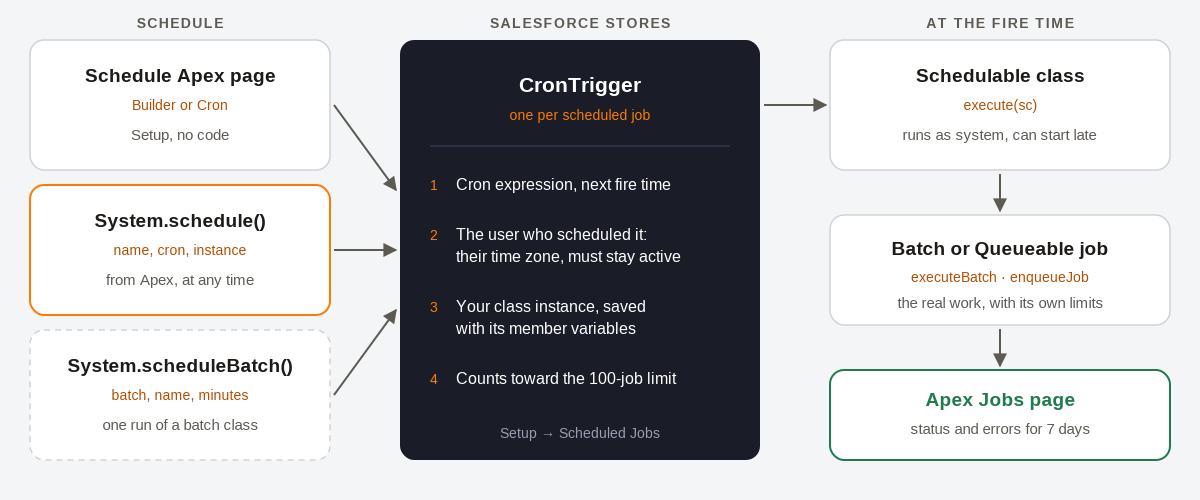
Two consequences shape the rest of this guide. First, timing is approximate: Salesforce schedules the class for the time you give, but the actual start can be delayed by service availability. Second, the job's own transaction is a poor place for heavy work. Synchronous governor limits apply to scheduled Apex, and synchronous callouts aren't supported in it, so Salesforce recommends doing the processing in a separate class. In practice, execute starts a batch job for large record volumes, or a Queueable that implements Database.AllowsCallouts when it has to call an external API.
Step 1: Write the Schedulable class
The Schedulable interface has one method, execute, which must be declared public or global. This example closes open tasks whose due date passed more than 90 days ago. The batch class does the work; the scheduled class only starts it.
// StaleTaskCleanupBatch.cls
public with sharing class StaleTaskCleanupBatch
        implements Database.Batchable<SObject> {
    public Database.QueryLocator start(Database.BatchableContext bc) {
        return Database.getQueryLocator([
            SELECT Id FROM Task
            WHERE IsClosed = false AND ActivityDate < LAST_N_DAYS:90
        ]);
    }

    public void execute(Database.BatchableContext bc, List<SObject> scope) {
        for (SObject record : scope) {
            record.put('Status', 'Completed');
        }
        update scope;
    }

    public void finish(Database.BatchableContext bc) {}
}

// StaleTaskCleanupJob.cls
public with sharing class StaleTaskCleanupJob implements Schedulable {
    public void execute(SchedulableContext sc) {
        Database.executeBatch(new StaleTaskCleanupBatch(), 200);
    }
}
Database.executeBatch hands the records to the batch's execute method in chunks (200 here), and governor limits reset for every chunk, so the job grows with your data instead of hitting one transaction's ceiling.
Step 2: Schedule it
Both routes create the same kind of job.
From Setup. Enter Apex Classes in the Quick Find box, select Apex Classes and click Schedule Apex. Name the job, pick the class, then choose Schedule Builder or Cron Expression. Schedule Builder offers Weekly (one or more weekdays) or Monthly (a date, or a day such as the second Saturday), a start and end date, and a preferred start time. Cron Expression takes the syntax in the next section. Since Summer '24, the Scheduled Jobs page has its own Schedule Apex button too.
From Apex. Run this once in the Developer Console's Execute Anonymous window:
String jobId = System.schedule(
    'Stale task cleanup - nightly',
    '0 0 2 * * ?',
    new StaleTaskCleanupJob()
);
System.debug('Scheduled job ' + jobId);
System.schedule returns the job's CronTrigger ID; keep it if you may want to stop the job from code later. The job name must be unique among scheduled jobs. A second job with the same name fails with System.AsyncException: The Apex job named "…" is already scheduled for execution.
System.schedule reads the expression in the time zone of the user who calls it, not in the org's default time zone. If an admin in London schedules 0 0 2 * * ?, the job runs at 2 a.m. London time, whoever maintains it later. If your team works across zones, the guide to cron, time zones and daylight saving time covers the traps.
Watch out
Calling System.schedule from a trigger is risky. Bulk API updates, import wizards and mass edits fire the trigger for many records at once, and Salesforce's advice is to schedule from a trigger only if you can guarantee it never adds more jobs than the limit allows.
Apex cron expressions: seconds first, at most hourly
An Apex cron expression follows the Quartz layout, not Unix crontab. It starts with seconds and ends with an optional year:
Seconds Minutes Hours Day_of_month Month Day_of_week Optional_year| Field | Values | Special characters |
|---|---|---|
| Seconds | 0–59 | None |
| Minutes | 0–59 | None |
| Hours | 0–23 | , - * / |
| Day_of_month | 1–31 | , - * ? / L W |
| Month | 1–12 or JAN–DEC | , - * / |
| Day_of_week | 1–7 or SUN–SAT, 1 is Sunday | , - * ? / L # |
| Optional_year | 1970–2099, or left out | , - * / |
The rules that trip people up:
- Seconds and minutes take one plain number. Salesforce lists no special characters for either field and states that Apex doesn't allow a job to be scheduled more than once an hour. Expressions like
0 0/15 * * * ?, common in blog posts, won't work. ?means "no specific value" and only works in the two day fields. Salesforce's own examples set one day field and put?in the other; do the same.Lmeans last: the last day of the month in the day-of-month field, Saturday on its own in the day-of-week field, or the last given weekday when a number comes first. Don't combine it with a range.Wpicks the weekday nearest a date and doesn't cross into another month: with1W, if the 1st is a Saturday, the job runs on Monday the 3rd.LWis the last weekday of the month.#picks the nth weekday of the month: the weekday number, then which occurrence.- A year limits the expression to that year, which is how you schedule a single run.
| Schedule | Expression |
|---|---|
| Every day at 1 p.m. | 0 0 13 * * ? |
| Every hour at five past | 0 5 * * * ? |
| Every two hours, from midnight | 0 0 0/2 * * ? |
| Weekdays at 10 a.m. | 0 0 10 ? * MON-FRI |
| First Monday of the month at 9 a.m. | 0 0 9 ? * 2#1 |
| Last Friday of the month at 10 p.m. | 0 0 22 ? * 6L |
| Once, at 8 a.m. on 13 February 2027 | 0 0 8 13 2 ? 2027 |
For every 15 minutes, schedule four jobs, one per quarter hour:
for (Integer minute : new List<Integer>{ 0, 15, 30, 45 }) {
    System.schedule(
        'Stale task cleanup at :' + minute,
        '0 ' + minute + ' * * * ?',
        new StaleTaskCleanupJob()
    );
}
Each of those jobs takes a slot of the 100-job limit, so every five minutes costs 12 slots this way. The self-rescheduling job in the next section does it with one. If you're converting a crontab line, the Quartz cron converter moves it into the seconds-first layout; then check that seconds and minutes are plain numbers.
Let code pick the next run
Everything so far uses a fixed expression. To let code decide the timing (a date from a record, a delay a user picked, an interval from configuration), build a one-time expression that includes the year:
public with sharing class ApexCron {
    // One run at runAt, in the time zone of the user who schedules it.
    public static String once(Datetime runAt) {
        return '0 ' + runAt.minute() + ' ' + runAt.hour() + ' ' + runAt.day() + ' '
            + runAt.month() + ' ? ' + runAt.year();
    }
}Datetime's minute(), hour(), day(), month() and year() return values in the running user's time zone, the same zone System.schedule uses, so the two agree.
A job that reschedules itself
This is how you run more often than once an hour from a single slot, or at an interval that changes between runs. Each run cancels its own trigger, books the next run, and only then starts the work, so a failure in the work can't break the chain.
public with sharing class StaleTaskCleanupLoop implements Schedulable {
    private final Integer intervalMinutes;

    public StaleTaskCleanupLoop(Integer intervalMinutes) {
        this.intervalMinutes = Math.max(intervalMinutes, 5);
    }

    public void execute(SchedulableContext sc) {
        System.abortJob(sc.getTriggerId());
        Datetime nextRun = Datetime.now().addMinutes(intervalMinutes);
        System.schedule(
            'Stale task cleanup ' + nextRun.format('yyyy-MM-dd HH:mm'),
            ApexCron.once(nextRun),
            new StaleTaskCleanupLoop(intervalMinutes)
        );
        Database.executeBatch(new StaleTaskCleanupBatch(), 200);
    }
}
Start the loop once from Execute Anonymous:
Datetime firstRun = Datetime.now().addMinutes(2);
System.schedule(
    'Stale task cleanup start',
    ApexCron.once(firstRun),
    new StaleTaskCleanupLoop(10)
);
Aborting the running job is safe: Salesforce lets code that is already running finish. The interval travels to each new job inside the instance you pass to System.schedule; to change it without a deployment, read it from custom metadata inside execute instead. The five-minute floor is this example's own guard, not a platform rule, so a bad value can't burn through the daily async limit. If a run fails before it reaches System.schedule, the loop stops silently, so check it with the CronTrigger query further down.
One-off delays
For a single delayed run, you don't need a Schedulable class:
System.scheduleBatch(batch, jobName, minutesFromNow)runs a batch class once, after the given number of minutes (more than zero). Until the batch starts, it counts toward the scheduled-job limit, andSystem.abortJobcan cancel it with the returned ID.System.enqueueJob(queueable, delay)queues a Queueable with a minimum delay of 0 to 10 minutes.
String cronId = System.scheduleBatch(
    new StaleTaskCleanupBatch(), 'Stale task cleanup in 30 min', 30
);
A Queueable that re-enqueues itself with a delay can loop too, but every run counts against the daily async limit, and in Developer Edition and trial orgs a chain stops after five jobs.
Change timing without a deployment: one dispatcher job
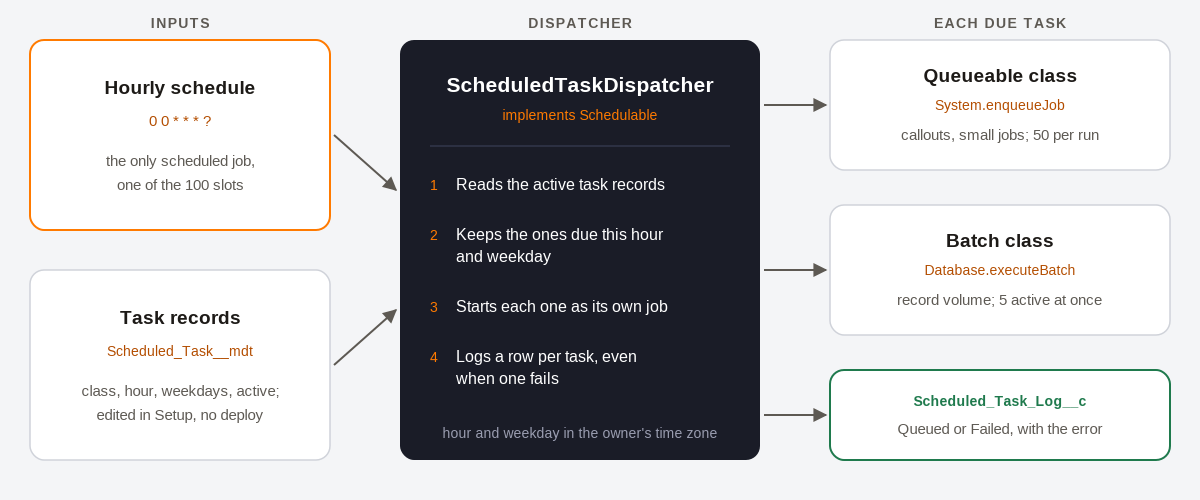
With a dozen periodic tasks, a scheduled job per task means a dozen cron strings, a dozen slots, and a developer for every timing change. The alternative is one hourly job that reads the task list from custom metadata and starts whatever is due. Admins change the list in Setup, and the next hourly run picks it up.
- From Setup, enter Custom Metadata Types in the Quick Find box and create a type labelled Scheduled Task (API name
Scheduled_Task__mdt). Add these fields, then one record per task:
| Field | Type | Example |
|---|---|---|
Class_Name__c | Text(255) | StaleTaskCleanupBatch, a Queueable or batch class |
Active__c | Checkbox | Checked |
Run_Hour__c | Number(2, 0) | 2 for the 2 a.m. run |
Run_Days__c | Text(27) | MON,WED,FRI, or blank for every day |
- Create a custom object Scheduled Task Log (
Scheduled_Task_Log__c) with three text fields:Task__c,Status__candMessage__c(255 characters). Run results can't go on the metadata records, because Apex changes custom metadata only through the Metadata classes, as a queued deployment. - Add the dispatcher class:
public with sharing class ScheduledTaskDispatcher implements Schedulable {
    private static final List<String> DAYS =
        new List<String>{ 'SUN', 'MON', 'TUE', 'WED', 'THU', 'FRI', 'SAT' };

    public void execute(SchedulableContext sc) {
        Datetime now = Datetime.now();
        // 7 January 1900 was a Sunday, so index 0 is SUN and 6 is SAT.
        Date knownSunday = Date.newInstance(1900, 1, 7);
        String today = DAYS[Math.mod(knownSunday.daysBetween(now.date()), 7)];
        List<Scheduled_Task_Log__c> logs = new List<Scheduled_Task_Log__c>();

        for (Scheduled_Task__mdt cfg : [
            SELECT DeveloperName, Class_Name__c, Run_Hour__c, Run_Days__c
            FROM Scheduled_Task__mdt
            WHERE Active__c = true
        ]) {
            Boolean hourMatches = cfg.Run_Hour__c != null
                && cfg.Run_Hour__c.intValue() == now.hour();
            Boolean dayMatches = String.isBlank(cfg.Run_Days__c)
                || cfg.Run_Days__c.toUpperCase().contains(today);
            if (hourMatches && dayMatches) {
                logs.add(startTask(cfg));
            }
        }
        insert logs;
    }

    private static Scheduled_Task_Log__c startTask(Scheduled_Task__mdt cfg) {
        Scheduled_Task_Log__c entry =
            new Scheduled_Task_Log__c(Task__c = cfg.DeveloperName);
        try {
            Type taskType = Type.forName(cfg.Class_Name__c);
            if (taskType == null) {
                entry.Status__c = 'Failed';
                entry.Message__c = 'Class not found';
                return entry;
            }
            Object job = taskType.newInstance();
            if (job instanceof Queueable) {
                System.enqueueJob(job);
            } else {
                Database.executeBatch(job, 200);
            }
            entry.Status__c = 'Queued';
        } catch (Exception e) {
            entry.Status__c = 'Failed';
            entry.Message__c = e.getMessage().left(255);
        }
        return entry;
    }
}- Schedule it once, at minute 0 of every hour:
System.schedule(
    'Scheduled task dispatcher', '0 0 * * * ?', new ScheduledTaskDispatcher()
);
What to know before you rely on it:
- Each task runs in its own job, with its own limits. A class name that doesn't resolve, or an exception while starting a task, becomes a Failed row in the log instead of stopping the other tasks.
- Reading the list is free in SOQL terms. Queries on custom metadata don't count toward the per-transaction query limit, unless they include long text area fields.
- The resolution is one hour, set by the dispatcher's own expression, and
Run_Hour__cis read in the time zone of whoever scheduled the dispatcher. A run that starts late, past the hour, skips that hour's tasks. If that matters, log each task's last run and treat anything overdue as due. - Flows fit in the same list. To start an autolaunched flow,
Flow.Interview.createInterview(flowName, inputs)followed bystart()works with the flow's API name. - It is a single point of failure. Schedule it as a user who won't be deactivated, such as a dedicated admin or integration user, because every task stops when that user does.
When a scheduled flow is enough
If the work is record updates an admin can build in Flow Builder, a schedule-triggered flow needs no Apex. You set the schedule in the Start element of an autolaunched flow, and it behaves differently from scheduled Apex:
- Frequency is once, daily or weekly. There is no cron expression and nothing hourly.
- The Start Time uses the org's default time zone. A one-time run whose date and time have already passed doesn't run.
- It runs as the Default Workflow User set in Process Automation Settings.
- With an object and filter conditions, it starts one interview per matching record, in batches of 200 by default (1 to 200 allowed). The cap is 250,000 interviews per 24 hours, or 200 per user license if that is more.
- It appears on the Scheduled Jobs page. Deleting it there cancels all future runs; deactivate and reactivate the flow to bring them back.
Record-triggered flows also have scheduled paths, which run a set time after a record change, or before or after a date field on the record. They follow the record, not the clock, so they can't replace a periodic job.
Monitor, change and stop jobs
The Scheduled Jobs page (enter Scheduled Jobs in Setup's Quick Find box) lists scheduled Apex next to scheduled flows, reporting snapshots and dashboard refreshes. It shows how much of the job limit is in use and, for each job, who submitted it, its next run and its CronTrigger ID. Its actions:
- Manage opens a job for editing, so you can reschedule it without deleting it.
- Pause Job and Resume Job. A resumed job runs once right away, then follows its schedule; runs missed while it was paused are skipped.
- Del permanently deletes all instances of the job.
The Apex Jobs page lists async jobs submitted in the past seven days with their status and, for batch jobs, how many batches ran. Scheduled jobs can't be aborted there.
From code, list scheduled Apex jobs through CronTrigger. Job type '7' is scheduled Apex:
for (CronTrigger ct : [
    SELECT Id, CronJobDetail.Name, CronExpression, TimesTriggered, NextFireTime
    FROM CronTrigger
    WHERE CronJobDetail.JobType = '7'
    ORDER BY NextFireTime
]) {
    System.debug(ct.CronJobDetail.Name + ' | ' + ct.CronExpression
        + ' | next run ' + ct.NextFireTime);
}
System.abortJob(jobId) stops a job. For scheduled Apex it needs the CronTrigger ID, from System.schedule or SchedulableContext.getTriggerId(), not an AsyncApexJob ID. Apex has no method that changes a scheduled job's expression, so in code you abort the job and schedule it again.
Deploying a class that has scheduled jobs
While a class has active scheduled jobs, you can't change it, or any class it references, through the Salesforce UI, and a deployment fails with This schedulable class has jobs pending or in progress. The Deployment Settings page in Setup can allow deployments with Apex jobs pending, but Salesforce warns that the job can then fail. Its recommended order is: delete the scheduled job, deploy, schedule it again.
Keep the System.schedule calls in a script in your repository, next to the classes, so recreating jobs after a release is a copy and paste rather than an exercise in memory.
Limits and why jobs stop
| Limit | Value (November 2026) |
|---|---|
| Scheduled Apex jobs at one time | 100, including System.scheduleBatch jobs that haven't started |
| Async Apex executions per rolling 24 hours, shared by batch, Queueable, scheduled and future Apex | 250,000, or 200 per user license if that is more |
| Active batch jobs | 5, with up to 100 more holding in the Apex flex queue |
| Queueables one scheduled run can enqueue | 50, because synchronous limits apply |
When a job that used to run goes quiet, the cause is usually one of these:
- Its owner was deactivated. Runs fail with
[INACTIVE_OWNER_OR_USER] owner or user is inactive. A job's running user can't be changed, so delete the job and schedule it again as an active user. - It ran its last time. An expression with a year, or a Schedule Builder job whose start and end date are the same day, runs once.
- Someone paused it. The Scheduled Jobs page shows it.
- A self-rescheduling loop broke because a run failed before it booked the next one.
- It calls an external API directly. Move the callout into a Queueable that implements
Database.AllowsCallouts. - It started late rather than not at all. After major Salesforce upgrades, scheduled jobs can start later than usual because of usage spikes.
When the schedule belongs outside Salesforce
Scheduled Apex is the right tool for work inside Salesforce. Some periodic jobs aren't Salesforce's, though: a sync service on your own server that pulls changed records through its own integration user, or a report your backend builds from Salesforce data. Schedule that service, not Salesforce. Pointing a cron service straight at Salesforce's REST API is a poor fit, because every call needs an OAuth access token and those tokens expire; let your service handle the login.
An online cron service such as Cronit then calls your service's HTTPS endpoint on a standard five-field cron schedule with a per-job time zone, sends the method, headers and body you set, and records every run in an execution log. The online cron job services compared roundup covers the options.
FAQ
- Do scheduled jobs survive a sandbox refresh?
- Scheduled Apex jobs don't. They aren't copied from the source org, so schedule them again in the refreshed sandbox. Schedule-triggered flows are the opposite: active ones can run right after the refresh, against sandbox data.
- How do I test a scheduled class without waiting for it?
- In a test method, call
System.schedulebetweenTest.startTest()andTest.stopTest().Test.stopTest()runs the scheduled job synchronously, so you can check its results on the next line. - Can a scheduled job keep data between runs?
- Yes. The instance you pass to
System.scheduleis saved with the job, and its member variables carry over into every run. Mark a variabletransientif it shouldn't be kept. - What happens to a job that is due during Salesforce maintenance?
- It runs after the service comes back, once resources are available. A job that was running when the downtime started is rolled back and scheduled again.
- Is Salesforce Scheduler the same as the Apex Scheduler?
- No. Salesforce Scheduler, formerly Lightning Scheduler, books customer appointments with the right person at the right place and time. It doesn't run code on a timer; scheduled Apex and schedule-triggered flows do that.