
How to schedule Netlify Functions (and run jobs longer than 30 seconds)
Netlify lets you run a function on a schedule without any extra service: you add a cron expression to the function's configuration, deploy, and Netlify invokes it for you. Scheduled functions are available on every plan, and for short tasks such as clearing a cache, pinging an API or rebuilding a small index, they are all you need.
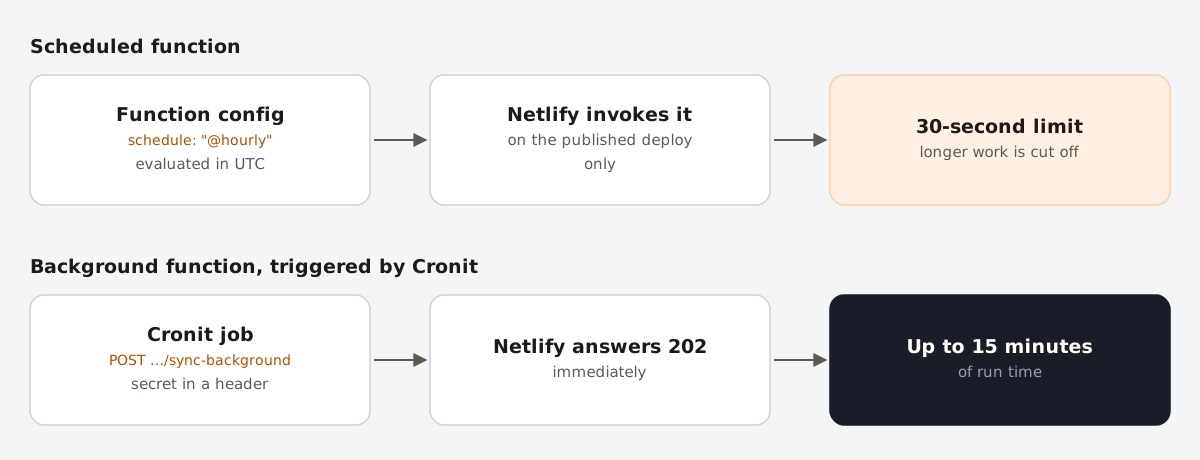
The catch is the time limit: a scheduled function must finish within 30 seconds. This guide shows how to set one up, how to test it, and how to run longer jobs on a schedule with a background function.
Short answer
Export config = { schedule: "@hourly" } from a function (or set schedule in netlify.toml) and deploy to production. Scheduled functions run in UTC, only on the published deploy, and stop after 30 seconds. For anything longer, schedule a call to a background function, which can run for up to 15 minutes.
Create a scheduled function
For JavaScript and TypeScript functions, declare the schedule next to the code. Create netlify/functions/refresh-rates.mts:
import type { Config } from '@netlify/functions';

export default async (req: Request) => {
  const { next_run } = await req.json();

  await refreshExchangeRates(); // must finish within 30 seconds
  console.log('Rates refreshed. Next run:', next_run);
};

export const config: Config = {
  schedule: '@hourly',
};
Netlify sends a small JSON body with the time of the next run (next_run). You cannot pass your own payload to a scheduled function.
For other languages, or if you prefer to keep schedules in one place, use netlify.toml:
[functions."refresh-rates"]
  schedule = "@hourly"

[functions."weekly-digest"]
  schedule = "0 7 * * 1"   # Mondays at 07:00 UTC
Writing the schedule
The schedule value is a standard five-field cron expression or one of these shortcuts:
| Shortcut | Same as | Runs |
|---|---|---|
@hourly | 0 * * * * | At the start of every hour |
@daily | 0 0 * * * | Every day at midnight UTC |
@weekly | 0 0 * * 0 | Sundays at midnight UTC |
@monthly | 0 0 1 * * | The first day of each month |
@yearly | 0 0 1 1 * | January 1st |
All times are UTC. @reboot and @annually are not supported. To build or check a custom expression, use the crontab generator or the cron analyzer.
Rules and limits
- 30 seconds, not configurable. A scheduled function that runs longer is stopped. Regular synchronous functions get 60 seconds, background functions 15 minutes.
- Published deploys only. Deploy previews and branch deploys do not trigger scheduled functions automatically.
- No URL. A scheduled function does not accept web requests, so you cannot call it with curl and you cannot combine
schedulewith a custompath. - UTC only. There is no time zone option.
- No split testing. Scheduled functions do not run on sites that use Split Testing.
Test it before you deploy
Run your site locally with the Netlify CLI, then invoke the function by name from another terminal:
netlify dev
netlify functions:invoke refresh-rates
After deploying, open the function in the Netlify UI: you can see its next scheduled run, its logs, and a Run now button that triggers it immediately, which also works on deploy previews.
Jobs longer than 30 seconds: use a background function
Background functions answer the caller with 202 Accepted straight away and then keep running for up to 15 minutes. If they throw an error, Netlify retries them twice (after one minute, then after two more). That makes them a good fit for imports, exports, report generation and other slow jobs.
A background function is a normal function whose name ends in -background, or, since June 2026, one that sets background: true in its config. Because it can be called by URL, protect it with a secret:
// netlify/functions/sync-orders-background.mts
export default async (req: Request) => {
  if (req.headers.get('authorization') !== `Bearer ${process.env.CRON_SECRET}`) {
    console.warn('Rejected call without a valid secret');
    return; // the caller already got 202, just stop here
  }

  const count = await syncOrders(); // up to 15 minutes
  console.log(`Synced ${count} orders`);
};
Add CRON_SECRET as an environment variable in the site settings (generate one with openssl rand -hex 32), then deploy. The function is available at https://your-site.netlify.app/.netlify/functions/sync-orders-background.
Now something needs to call it on a schedule. You have two options.
Option 1: a scheduled function that calls it
Keep everything on Netlify by adding a tiny scheduled function whose only job is to start the background one:
// netlify/functions/sync-orders-cron.mts
import type { Config } from '@netlify/functions';

export default async () => {
  await fetch(`${process.env.URL}/.netlify/functions/sync-orders-background`, {
    method: 'POST',
    headers: { authorization: `Bearer ${process.env.CRON_SECRET}` },
  });
};

export const config: Config = { schedule: '*/30 * * * *' };
URL is set by Netlify to your site's main address. This works well, but you now have two functions to maintain, and the schedule only changes when you redeploy.
Option 2: call it from Cronit
Let an external scheduler make the call instead. You can then change the schedule without a deploy, point a second job at a branch deploy to test it, and see every call in one place.
- In Cronit, create a new recurring job.
- Set the method to POST and the URL to the background function's address.
- In Headers, add
Authorization: Bearerfollowed by your secret. - Pick the schedule, for example
*/30 * * * *for every 30 minutes.
One thing to know: a background function always answers 202, even when the work later fails. The call log tells you the job was started; to know whether it succeeded, log the result or send a heartbeat from the function itself, as described in our guide to monitoring cron jobs.
Which function type should you use?
| Scheduled | Synchronous | Background | |
|---|---|---|---|
| Max duration | 30 s | 60 s | 15 min |
| Started by | Netlify, on schedule | HTTP request | HTTP request |
| Caller gets | — | Your response | 202 immediately |
| Retries on error | Not documented | No | Yes, twice |
| Good for | Short, regular tasks | Quick jobs where you want the result | Slow imports, exports, reports |
FAQ
- Why is my Netlify scheduled function not running?
- Make sure the deploy is published (deploy previews and branch deploys do not run schedules), that the function name in
netlify.tomlmatches the file name, and that the site does not use Split Testing. The function page in the Netlify UI shows the next scheduled run. - Can I call a scheduled function by URL?
- No. Use the Run now button in the Netlify UI, or move the logic to a regular or background function that you can call over HTTP.
- What time zone do Netlify scheduled functions use?
- UTC. Convert your local time and remember that the offset changes with daylight saving time.
- Are scheduled functions free?
- They are available on all Netlify plans and count toward your usage like other function invocations.